Controllers & mouse mode
SDL3 gamepad mapping, Joy-Con 2 middle-click block building, L3+R3 F1 overlay shortcuts, and all seven button prompt themes.
- Input: SDL3 + Gyro + Rumble
- Mouse mode: Middle click
- Overlay: F1 or L3+R3
- Quit: Hold Select+Start
SDL3 gamepad support, rumble & motion
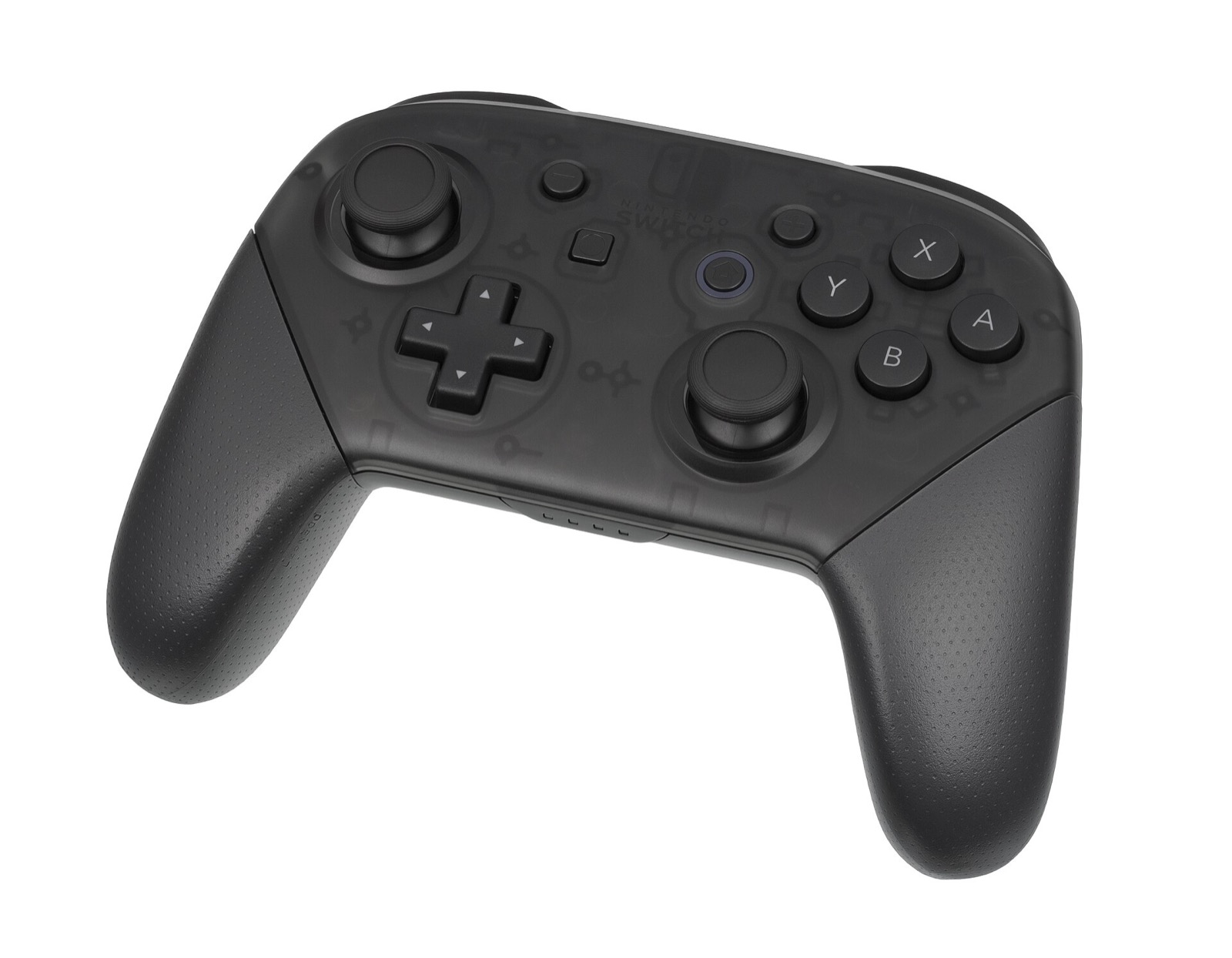
Recompia handles controllers, rumble, motion sensors, keyboard, and mouse input through SDL3. Xbox, PlayStation (DualShock 4 / DualSense), Nintendo Switch Pro, 8BitDo, GameSir, and Steam Deck controls work out of the box:
- Default Switch button layout: face buttons follow the Nintendo Switch layout (A on the right, B on the bottom, X on top, Y on the left) by default, and any button can be rebound on the F1 Controls page.
- Automatic & themed on-screen prompts: by default, on-screen button icons switch dynamically to match what you are holding (keyboard, Xbox, PlayStation, Steam Controller, or Switch).
- Name entry with any device: typing your character or island name works with a controller, mouse, or physical keyboard (and automatically opens Steam’s on-screen keyboard in SteamOS / Big Picture mode).
Shortcuts, Joy-Con 2 mouse mode & F1 overlay
Introduced across v0.10.3 and v0.11.0, these shortcuts let you control every overlay and building mode without leaving your seat:
| Shortcut / Input | Feature | Behavior & Configuration |
|---|---|---|
| Middle Mouse Click | Joy-Con 2 Mouse Mode | Toggles point-and-click block placement/breaking (Left click = R, Right click = ZR; customizable under Settings > Mouse > Mouse Mode Key). |
| F1 / L3 + R3 | In-Game Settings Overlay | Opens Graphics, Controls, Audio, Gameplay, and Mods tabs (controller shortcut configurable via [overlay] pad in controls.ini; set none to disable). |
| Hold Select + Start (View + Menu) | Quit Game Cleanly | Exits Recompia from a controller without needing Alt+F4 (or use Quit game inside the F1 menu). |
| Alt + Enter | Fullscreen / Window Toggle | Switches between Windowed, Borderless, and Fullscreen while playing. |
| Mouse Wheel / Arrow Keys + Left Click | Menu Navigation | Scroll or use arrow keys to move menu highlights; left-click confirms the highlighted item. |
Button icon themes in controls.ini (v0.10.3+)
In addition to automatic prompt detection, v0.10.3 added selectable Kenney white icon themes with a live button-mapping preview inside both the launcher’s Controls tab and the in-game F1 Controller tab. You can pick a theme in the UI or set [prompts] style inside controls.ini:
| controls.ini Value | Theme Name | Visual Prompts Shown |
|---|---|---|
switch1 | Nintendo Switch | White Kenney button prompts matching original Switch Joy-Con / Pro Controller |
switch2 | Nintendo Switch 2 | Switch 2 button prompt art |
steamdeck | Valve Steam Deck | Dedicated Steam Deck art showing L1/R1, L4/L5/R4/R5 back grip buttons, and trackpads (v0.10.3) |
wiiu | Nintendo Wii U | Wii U GamePad / Pro Controller button icons |
steamframe | Steam Controller / Frame | Steam Controller glyph layout |
index | Valve Index | Valve Index controller prompts (A, B, triggers, trackpad, left stick as D-pad) |
touch | Touch Gestures | On-screen gesture icons (tap, two-finger tap, swipes, pinch) |
Controllers for Pokopia Recomp
Recompia uses SDL3 for native gamepad input, rumble, motion controls, L3+R3 F1 overlay access, and 6 Kenney button icon themes. These controllers pair cleanly on Windows, Linux, SteamOS and macOS:
| Controller | Best For in Pokopia Recomp | Hardware Advantage | Link |
|---|---|---|---|
| GameSir Cyclone 2 | Island building & camera aim | TMR sticks, Hall linear/microswitch triggers, gyro + 1000 Hz dongle | View on Amazon |
| 8BitDo Ultimate 2 Wireless | Switch layout & SteamOS dock | TMR sticks, 2.4 GHz charging dock, instant Switch/XInput toggle | View on Amazon |
| Sony DualSense | PlayStation glyphs & USB motion | 6-axis IMU + native PlayStation button prompt theme in F1 menu | View on Amazon |
| Xbox Wireless Controller | Windows 10/11 & Link Play co-op | Native XInput + View+Menu hold to quit or open handheld overlay | View on Amazon |
As an Amazon Associate, this site earns from qualifying purchases.

Common questions
What should I check if my controller is not detected in-game?
Press F1 in-game, open the Controls tab, and check the Gamepad status line (it reads "No gamepad open" when none is seen). Connect the controller before pressing Play in PokopiaLauncher, close background input wrappers that may hold exclusive access, or try a different USB cable/port.
How do I use Joy-Con 2 mouse mode to place and break blocks?
Restored in v0.11.0: press the middle mouse button while playing to switch from camera aim to a free pointer. Left click triggers R and right click triggers ZR on the exact block under the cursor. Press middle mouse again to return to normal camera aim, or rebind the toggle under Settings > Mouse > Mouse Mode Key.
How do I disable the L3 + R3 shortcut if I accidentally press both sticks?
Open controls.ini in your game folder and set pad = none under the [overlay] section. That disables the L3 + R3 controller shortcut while keeping F1 active on the keyboard.