Steam Deck & Linux guide
Run Recompia on SteamOS and Linux via Proton Experimental, the native glibc 2.35+ runtime, or the pokopia-recomp-linux AppImage.
- Deck LCD: 50–55 fps
- Deck OLED: 45 fps vblank lock
- Native Linux: glibc 2.35+
- Launch flag: --play
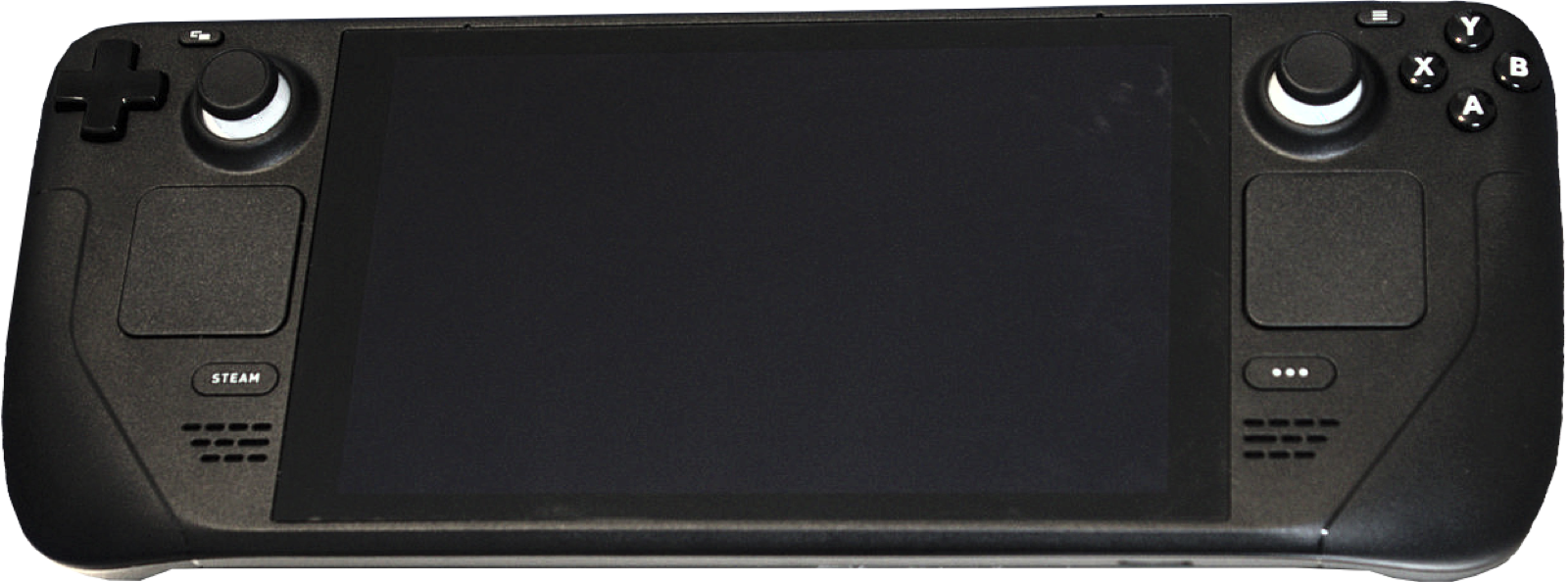
Three ways to run Pokopia Recomp on Linux & Steam Deck
Linux and SteamOS handheld players have three verified options depending on whether you prioritize Link Play co-op today, zero-Proton native execution, or pre-tuned Steam Deck LCD defaults:
| Build | Package & Size | Execution Model | Key Strengths |
|---|---|---|---|
Recompia v0.11.1 StableDittobyte/Recompia | PokopiaRecomp-0.11.1-linux-x64.tar.gz (161.3 MB) | Launcher AppImage + pkp.exe via Proton Experimental | Full internet/LAN Link Play, Modtopia .pkmod mods, 45 fps OLED vblank lock, 26–53 fps on Deck. |
Recompia v0.12.0-beta.1 TestingDittobyte/Recompia (#562) | PokopiaRecomp-0.12.0-beta.1-linux-x64.tar.gz (134.7 MB) | Native Linux binary (libpkp_rt.so + SDL3, glibc 2.35+, zero Proton/Wine) | Direct POSIX kernel calls, single-range mprotect (3,132 µs → 34 µs), futex waits, Modtopia Browse hub. |
pokopia-recomp-linux v0.1.1-linux.2tinfoil-chewer/pokopia-recomp-linux | PokopiaLauncher-0.1.1-x86_64.AppImage (236.2 MB) | Standalone AppImage + tuned AMD RADV/Proton runtime (pkp_rt.dll) | ~50–55 fps on Steam Deck LCD at 720p, zstd boot shader pack (~10 s microSD boot), View+Menu controller overlay. |
Option 1: Recompia v0.11.1 Stable on SteamOS & Linux (Proton Experimental)
- Switch your Steam Deck to Desktop Mode, open Steam, and install Proton Experimental under Library > Tools.
- Download
PokopiaRecomp-0.11.1-linux-x64.tar.gz(161.3 MB) from Download & SHA-256 and extract it into your home folder (internal NVMe SSD is strongly preferred over slow microSD storage). - Run
PokopiaLauncher.AppImageinside the extracted folder (double-click or run./PokopiaLauncher.AppImagein Konsole; if your Linux distribution has no FUSE support, run./PokopiaLauncher.AppImage --appimage-extract-and-run). - Select your 2.0.1a dump folder and press Set up. On first run it downloads Python and Zig (~100 MB), compiles the game, and translates the shader cache through Proton. You can pause and resume at any time.
- To launch directly from Steam Game Mode: in Desktop Mode, click Add a Non-Steam Game, pick
PokopiaLauncher.AppImage, and set its Steam Launch Options to--play. (Without--play, the launcher also scales to full screen with touch-friendly controls in Game Mode since v0.10.2-beta.4, #461.)
Option 2: Recompia v0.12.0-beta.1 Native Linux (No Proton, glibc 2.35+)
Shipped in v0.12.0-beta.1 (#562), Recompia now compiles a true native Linux binary linked against libpkp_rt.so and SDL3:
- System requirements: any Linux x86_64 distribution with
glibc 2.35or newer (Ubuntu 22.04+, Debian 12+, Fedora 36+, Arch/CachyOS, Bazzite, and SteamOS 3) plus standard host graphics libraries (libvulkan,libEGL,libGL,libGLESv2). - Why native Linux is leaner:
runtime/src/os/talks directly to POSIX files, memory mappings, sockets, and threads without Wine or wineserver. Page write tracking arms an entire memory range in a singlemprotectcall (cutting a 10 MiB arm from 3,132 µs down to 34 µs), and timed address waits use Linux futexes so the game’s ~100 µs GPU-fence polls no longer spin two CPU cores.
Option 3: tinfoil-chewer/pokopia-recomp-linux (v0.1.1-linux.2)
Maintained at github.com/tinfoil-chewer/pokopia-recomp-linux, this community Linux edition packages a 236.2 MB standalone AppImage (PokopiaLauncher-0.1.1-x86_64.AppImage) tested on an RTX 4070 Linux desktop, a Steam Deck LCD, and an AMD Steam Machine:
- 50–55 fps on Steam Deck LCD: detects
SteamDeck=1automatically, enables the game’s 720p handheld mode, sleeps shortSleepThreadwaits so the CPU and GPU share the Deck’s 15 W APU power budget efficiently, and invokes Steam’s on-screen keyboard viasteam://open/keyboardfor name entry. - 10-second microSD boot shader pack: packs the boot shaders into a single
zstdarchive after the first start, cutting startup shader loading on a microSD card from ~60 seconds down to ~10 seconds. - View + Menu gamepad overlay: hold View + Menu together on the Steam Deck to open the Dear ImGui settings overlay and navigate with the D-pad.
Steam Deck OLED 45 fps vblank lock & AMD handheld tips
- 16:10 full-screen fit: Steam Deck and Legion Go S screens are recognized automatically so 16:10 displays fill edge to edge with no black bars and controller glyphs stay locked on screen.
- Steam Deck OLED 45 fps vblank lock (v0.11.0): on a 90 Hz Steam Deck OLED display, enable Vsync, set the frame rate limit to 45, and add
vblank_lock = 1under[latency]inpkp.iniso every frame holds for exactly two display refreshes without uneven frame pacing. - Fixed "graphics device was lost" (v0.11.0 #531, #533): Ocelot fixed the random Vulkan device loss on Steam Deck RADV and the matching full freeze on Linux NVIDIA drivers by keeping host-visible graphics memory synchronized and guarding compute light-list loops (
[nvn] loop_guard). - Submitting handheld telemetry: after playing for ~20 minutes on a Steam Deck, ROG Ally, or Legion Go, open Settings > Testing and click Copy handheld report (#443) to copy an anonymized summary of your driver, memory, and frame times for GitHub bug reports.

Common questions
Why does PokopiaLauncher.AppImage fail to open when double-clicked on Ubuntu or Fedora?
Some modern Linux distributions do not preinstall libfuse2 for AppImages. Either install fuse/libfuse2 or run ./PokopiaLauncher.AppImage --appimage-extract-and-run from a terminal.
Should I run first-time Set up on my desktop PC or directly on the Steam Deck?
You can do either: running Set up directly on the Steam Deck takes ~1.25 to 2 hours (keep it plugged into AC power), whereas running Set up on a fast desktop Linux or Windows PC takes ~20 minutes total and you can then copy the finished game folder onto your Steam Deck’s internal SSD.
How do I stop Proton from running आउट of memory during shader translation?
Fixed in v0.11.0 (#530) and v0.10.2-beta.3 (#455): if the shader translator exits during Set up under Proton ("Translating shaders: 0 of 99012"), the launcher automatically retries that batch with workstation memory management and 2 jobs, and compares pagefile commit under Proton.